From Phones to Consoles: What to Expect from a Quality Tech Repair Service

The Spectrum of Repairable Devices and Common Fixes
We’ve all been there. That sickening moment when your coffee cup tips, or rain suddenly finds its way to your open backpack. Suddenly, your trusty laptop is soaked. A water damaged laptop can feel like a disaster, threatening your work, studies, and connection to the world. But don’t despair. Acting fast and knowing the right steps can make all the difference.
In this extensive guide, we will give you the knowledge to handle such emergencies. We’ll cover everything from the immediate actions you must take to save your device, to common myths you should ignore. Beyond just laptops, we will explore what to expect from a truly quality tech repair service, whether it’s for phones, tablets, or gaming consoles. Our goal is to empower you with clear, actionable advice to protect your digital devices.
In our increasingly connected world, digital devices are more than just gadgets; they are extensions of ourselves, holding our memories, work, and entertainment. When they falter, it can disrupt our lives significantly. Fortunately, a wide range of tech repair services exists to bring these devices back to life.
What Devices Fall Under Tech Device Repair?
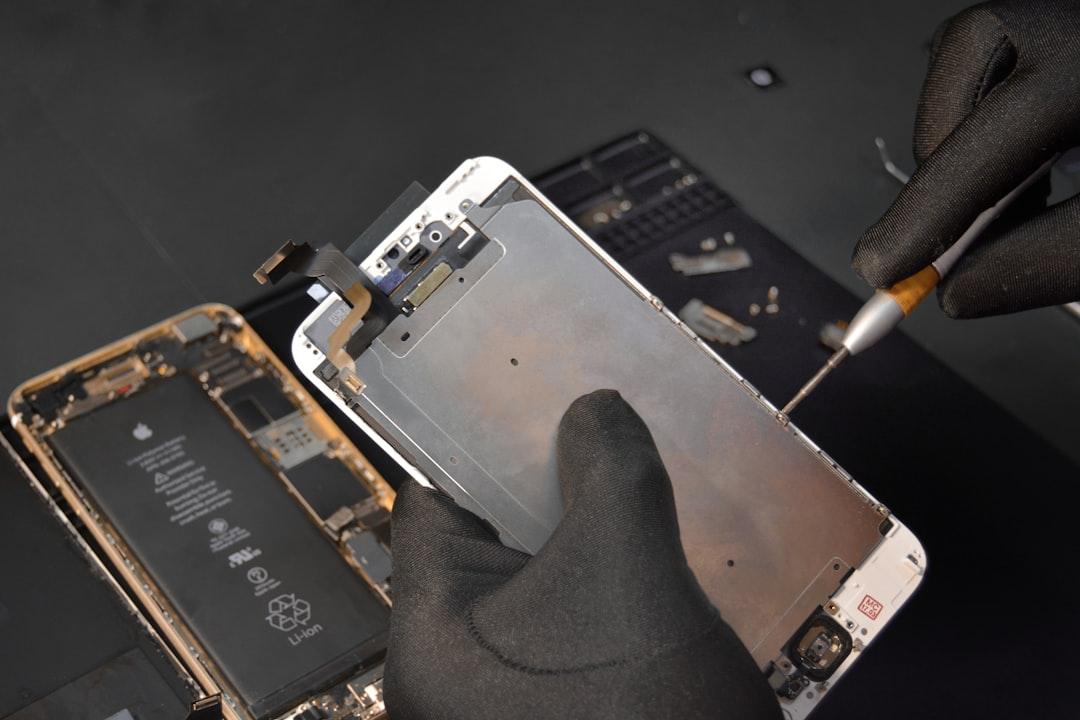
The scope of modern tech repair is vast, encompassing nearly any electronic device you rely on daily. This includes the ubiquitous smartphones that keep us connected, the powerful laptops and desktop computers essential for work and creativity, the versatile tablets for on-the-go productivity and entertainment, and the immersive gaming consoles that provide countless hours of fun. Even specialized devices like drones often find their way into repair shops. Each category presents its own unique challenges and common points of failure, requiring specialized knowledge and tools for effective repair.
Common and Straightforward Repairs
While some repairs can be complex, many issues are quite common and often straightforward for experienced technicians. Understanding these can help you gauge the severity of your device’s problem.
- Cracked Screens: This is arguably the most frequent repair across smartphones, tablets, and laptops. A quality repair service can replace the damaged display, often restoring it to its original clarity.
- Battery Replacement: Over time, all rechargeable batteries degrade. Symptoms like rapid draining, unexpected shutdowns, or a bulging battery are clear indicators. Swapping out an old battery for a new one can dramatically extend a device’s usable life.
- Charging Port Issues: Constant plugging and unplugging can wear out charging ports, leading to unreliable charging or complete failure. This is a common fix that restores essential power delivery.
- Overheating: While sometimes a symptom of deeper issues, overheating can often be resolved by cleaning internal fans, reapplying thermal paste, or addressing software inefficiencies.
- Slow Performance: Often, sluggishness isn’t a hardware failure but a software issue, such as too many background applications, malware, or a fragmented hard drive. These are typically resolved through software optimization or component upgrades like an SSD.
- Software Glitches: From operating system crashes to application errors, software problems are a daily occurrence. Tech repair services can diagnose and fix these, often through reinstallation, updates, or virus removal.
These common issues highlight that not every problem spells the end for your device. With the right expertise, many devices can be repaired and returned to optimal function.
Navigating Complex Issues: Water Damage and Beyond
While many repairs are routine, some issues, like liquid damage, introduce a higher level of complexity and urgency. Understanding these challenges is crucial for effective intervention.
The Truth About Water Damaged Electronics
When your laptop encounters liquid, the immediate aftermath can be a race against time. The primary threats are electrical shorts and corrosion. Liquids, especially those containing dissolved minerals or sugars, can conduct electricity, causing components to short-circuit and potentially leading to irreversible damage. Furthermore, once the liquid dries, it can leave behind residues that accelerate corrosion, slowly eating away at delicate circuitry.
What are the immediate steps to take if I spill water on my laptop? Acting fast is paramount. If you don’t, corrosion can set in and short-circuit your device. Here’s what you need to do:
- Turn it off IMMEDIATELY: If the device is still on, turn it off. Turning off a liquid-damaged device is crucial to prevent electrical shorts and subsequent damage. Liquids like water can conduct electricity and lead to short circuits, potentially harming internal components and causing irreversible harm to the device. Do not wait for the operating system to shut down; press and hold the power button for 5-10 seconds to force a shutdown.
- Disconnect from Power: Disconnect your device from every power source ASAP. Because liquids like water conduct electricity, you must disconnect your laptop from any power sources to prevent the components from becoming shorted. This includes disconnecting your laptop from its charger and disconnecting and removing the battery if possible. If you are wet or standing in water, turn off the power at the circuit breaker instead of touching the laptop or its power cord to avoid electrocution.
- Remove Peripherals: Unplug all external devices like USB drives, external hard drives, mice, and any other accessories.
- Remove the Battery (if possible): If your laptop has a removable battery, take it out immediately. This completely cuts off power to the internal components, further mitigating the risk of shorts.
- Drain Excess Liquid: Turn the laptop upside down (into a “tent” shape if possible) and gently dab any visible liquid from the surface with an absorbent, lint-free cloth. Gravity can help drain liquid from internal crevices.
- Assess the Liquid Type: The pH of the spilled liquid plays a significant role in laptop damage. Pure water (pH 7.0) is less corrosive than acidic liquids like lemon juice (pH 2.3) or cola (pH 2.5-3.5), or basic liquids like hand soap (pH 9.0-10.0) or bleach (pH 12.5). Sugary drinks are particularly problematic as they leave sticky, conductive residues that are hard to remove and accelerate corrosion. The more corrosive or residue-leaving the liquid, the greater the urgency for professional intervention.
For devices like a Surface, MacBook, ultrabook, or any other laptop that you cannot take apart or even remove the battery, place the laptop upside down and take it to a repair center ASAP. The faster it gets to a professional, the better its chances of recovery.
What to Avoid When Your Device Gets Wet
Just as important as knowing what to do is understanding what not to do, as common misconceptions can exacerbate the damage.
What should I NOT do if my laptop gets wet? Are there any DIY methods that are NOT recommended for water-damaged laptops (e.g., rice, hair dryer)?
Here’s a critical list of actions to avoid:
- Do NOT Turn it Back On: This is a golden rule. Attempting to power on a wet laptop can cause immediate and catastrophic short circuits, frying components that might otherwise have been salvageable. Resist the urge to “test” if it still works.
- Do NOT Use Rice: Despite popular belief, placing your laptop in a bag of rice is ineffective and potentially harmful. Rice is a poor desiccant for electronics, and its small particles can get lodged in ports, keys, or internal components, causing further issues. It also gives corrosion more time to set in.
- Do NOT Use a Hair Dryer or Other Heat Sources: The concentrated heat from a hair dryer can damage sensitive internal components, warp plastic, or melt solder. Furthermore, the forced air can push liquid deeper into the device, spreading the damage. Similarly, direct sunlight or placing the laptop on a radiator is too intense and can cause as much damage as the water itself.
- Do NOT Shake the Laptop: Shaking the device will only spread the liquid to previously dry areas, increasing the scope of the damage.
- Do NOT Charge It: Never plug in a water-damaged laptop to charge. This can cause electrical shorts and further damage.
- Do NOT Disassemble Without Knowledge: While opening the laptop can help with drying, improper disassembly can void warranties, cause static discharge damage, or lead to lost parts. Only attempt if you are confident in your technical skills and have the right tools and guides.
When Professional Help is Non-Negotiable
While immediate DIY steps can mitigate initial damage, there are many scenarios where professional intervention becomes essential.
When should I consider professional repair for a water-damaged laptop?
- Data Loss Concerns: If the spill was significant and you’re worried about losing important files, a professional can often recover data even from severely damaged components.
- No Power After Drying: If, after waiting at least 24-48 hours for the laptop to dry completely, it still doesn’t turn on, it’s a clear sign of internal damage requiring expert diagnosis.
- Submersion: If your laptop was fully submerged, the chances of internal components being compromised are extremely high.
- Sugary or Corrosive Liquids: Spills involving coffee, soda, wine, or anything acidic/basic require specialized cleaning beyond simple drying. These liquids leave residues that demand thorough removal to prevent long-term corrosion and sticky keys.
- Unremovable Battery: Many modern laptops, especially ultrabooks and MacBooks, have integrated batteries that cannot be easily removed by the user. In these cases, it’s crucial to get the device to a professional immediately so they can safely disconnect the internal power source and begin the drying and cleaning process.
- Visible Corrosion or Malfunction: If you notice any signs of corrosion (white or green powdery residue), strange smells, flickering screens, unresponsive keys, or other erratic behavior after a spill, professional assessment is vital.
- Long-Term Damage and Corrosion Risks: What are the risks of corrosion and long-term damage after a liquid spill? Even if a laptop appears to work immediately after a spill, residual moisture or unseen corrosive agents can slowly degrade components over weeks or months. This silent killer can lead to intermittent issues, component failure, and ultimately, a dead laptop. A professional can thoroughly clean and inspect for these hidden threats.
Our experts handle water damage all the time and can fix it fast. If your laptop is not working after trying these tips, skip the hassle and take it to your nearest uBreakiFix by Asurion store. Our experts will give you a free device diagnostic and help you with a laptop repair from water damage. You can schedule a repair directly through their website.
The Core Process of Professional Tech Device Repair
When you entrust your water-damaged device to professionals, you’re engaging with a systematic process designed to maximize recovery and ensure lasting functionality.
Step 1: The Diagnostic Check-Up
The journey of repair begins with a comprehensive diagnostic. This crucial step is often offered as a free service, providing transparency and preventing unnecessary costs. The diagnostic check-up involves:
- Problem Identification: Technicians use specialized tools and their expertise to pinpoint exactly where the liquid penetrated and which components have been affected.
- Hardware Testing: This includes testing the motherboard, RAM, storage drive, keyboard, screen, and all ports for functionality and signs of damage.
- Software Analysis: Sometimes, even liquid damage can trigger software anomalies, which are also assessed.
- No-Obligation Quote: Based on the diagnostic findings, you’ll receive a detailed explanation of the damage, the proposed repair plan, and a clear, upfront cost estimate. The first step is a $0 diagnostic checkup.
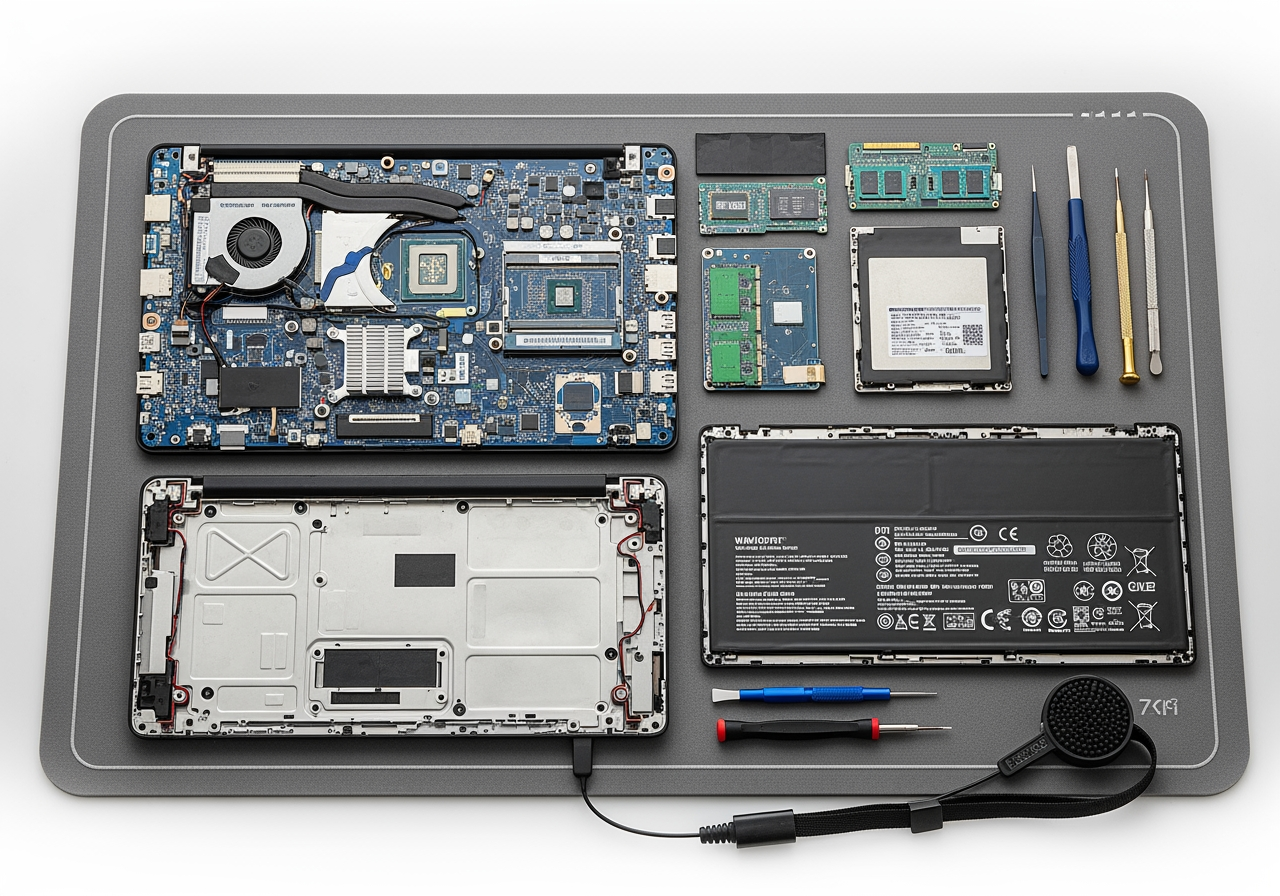
How does a professional clean and assess liquid-damaged laptop components? Professionals employ a multi-faceted approach. After careful disassembly, they visually inspect components for corrosion and residue. They then use specialized cleaning agents, often 90%+ isopropyl alcohol, and precision tools like fine brushes or even ultrasonic cleaners to carefully remove all traces of corrosive liquids and residues from circuit boards. This deep cleaning is vital to prevent future corrosion and ensure electrical conductivity. Components are then thoroughly dried in controlled environments before reassembly. This meticulous process ensures that even microscopic damage is addressed.
Step 2: Understanding the Cost and Warranty
Once the diagnostic is complete, understanding the financial and warranty aspects of the repair is the next step.
- Upfront Pricing: Reputable repair services provide clear, upfront pricing, detailing the cost of parts and labor. This ensures there are no surprises. You’ll often find competitive pricing, with some services offering to beat a local competitor’s published price by $5.
- Repair vs. Replacement Cost:Technicians will help you weigh the cost of repair against the cost of replacing your device, especially for older models.
- Limited Warranty: Most repairs come with a standard 1-year limited warranty, covering the repaired components and labor. However, for liquid damage repairs, the warranty terms can differ significantly. Can a water-damaged laptop be completely fixed, or is it always a partial recovery? While many water-damaged laptops can be completely restored to full functionality, liquid damage is notoriously unpredictable. Due to the pervasive nature of liquid, there’s always a risk of latent issues or components failing later. Therefore, many repair services, including uBreakiFix by Asurion, do not provide their standard warranty for liquid damage repairs. This is an industry standard reflecting the inherent complexities and risks associated with liquid ingress.
- Battery and Storage Drive Assessment: What are the signs that a water-damaged laptop battery or storage drive needs replacement?For batteries, look for bulging, bubbling, discoloration, or extreme heat. These are critical safety hazards, and the battery should be replaced and disposed of only at a battery recycling facility. For storage drives (HDDs/SSDs), signs include failure to boot, corrupted files, extremely slow performance, or clicking/grinding noises (for HDDs). While data recovery might be possible, the drive itself often needs replacement to ensure reliability.
Choosing a Quality Tech Repair Service
When your digital life is on the line, selecting the right repair service is paramount. A quality tech repair service can be the difference between a salvaged device and a costly replacement. Finding a trustworthy Albuquerque tech device repair shop is key for reliable support.
Key Qualities of a Reputable Repair Shop
Knowing what to look for can help you make an informed decision:
- Trained and Certified Technicians:The expertise of the individual handling your device is critical. Look for shops that employ certified technicians who undergo continuous training to stay abreast of the latest technologies and repair techniques.
- High-Quality Parts: A reputable repair service will use high-quality, often OEM-equivalent, replacement parts to ensure the longevity and performance of your device. They should be transparent about their parts sourcing.
- Transparent Pricing: As discussed, clear, upfront pricing without hidden fees is a hallmark of a trustworthy shop. They should provide detailed quotes before any work begins.
- Positive Customer Reviews and Reputation: Online reviews on platforms like Google, Yelp, or Consumer Affairs offer valuable insights into a shop’s customer service and repair quality. A strong reputation built on positive feedback is a good indicator.
- Good Communication: The repair process can be stressful. A quality service will keep you informed every step of the way, explaining the problem, the solution, and any potential challenges in clear, understandable language.
- Convenience and Speed: While quality shouldn’t be rushed, efficient services that offer quick turnaround times for common repairs, or easily accessible locations, add significant value.
DIY vs. Professional: Making the Right Call
Deciding whether to attempt a DIY repair or seek professional help is a common dilemma. Here’s a comparison to guide your decision:
Feature DIY Repair Professional Repair CostPotentially lower (parts only) Includes parts, labor, and expertise Expertise Requires significant technical knowledge Performed by trained, experienced technicians ToolsRequires specialized tools, often costly Technicians have access to advanced equipment Risk High risk of further damage, voiding warranty Lower risk of damage, professional guarantee Time Can be time-consuming, trial-and-error Efficient, often with quick turnaround times WarrantyNo warranty, may void manufacturer’s warranty Often includes a limited warranty on parts/labor Success Rate Varies greatly based on skill and problem Generally higher, especially for complex issues Data SafetyRisk of data loss if not handled correctly Data recovery expertise, safer handling of data For simple issues like cosmetic damage or easily replaceable components, DIY might seem appealing. However, for complex problems like water damage, where internal corrosion and delicate circuitry are involved, the risks of DIY often outweigh the potential savings. The specialized tools, diagnostic capabilities, and expertise of professional technicians significantly increase the chances of a successful and lasting repair.
Frequently Asked Questions about Tech Repair
Even with a detailed guide, common questions often arise when considering tech repair. Here, we address some of the most frequent inquiries.
How much will a typical tech repair cost?
The cost of a tech repair can vary widely, depending on several factors:
- Device Type: Repairing a smartphone screen will generally cost less than a complex motherboard repair on a high-end laptop.
- Nature of Damage: A simple battery replacement is less expensive than extensive liquid damage remediation.
- Parts Required: The cost of replacement parts, especially for proprietary components or newer models, can significantly impact the total.
- Labor: The technician’s time and expertise are factored into the cost.
Most reputable repair services begin with a diagnostic check-up, which is often free. After diagnosing the issue, they provide an upfront estimate for the repair. Some even offer price matching; for instance, if you find a lower published price for the same repair from a local competitor, they’ll beat the competitor’s price by $5. This ensures you get competitive rates for quality service.
Is my old device worth repairing?
This is a common and important question. Deciding whether to repair or replace often comes down to a cost-benefit analysis:
- Age of the Device: Newer devices often justify repairs more easily, as their replacement cost is higher and their technology is still current.
- Cost of Repair vs. New Device: If the repair cost approaches or exceeds 50-70% of the price of a new, comparable device, replacement might be more economical in the long run.
- Value of Data: If your device holds irreplaceable data that hasn’t been backed up, the cost of repair (or at least data recovery) might be worth it regardless of the device’s age.
- Sentimental Value: For some, a device holds sentimental value, making repair a preferred option over replacement.
- Future-Proofing: Consider if the repaired device will meet your needs for the foreseeable future, or if its specifications are too outdated.
A good repair technician can help you make this decision by providing an honest assessment of the repair’s feasibility, cost, and expected longevity of the device post-repair.
How long will the repair take?
Repair times are influenced by the type and severity of the damage, as well as parts availability:
- Common Issues: Many straightforward repairs, like screen replacements or battery swaps for popular models, can often be completed the same day, sometimes even within an hour or two.
- Parts Availability: If a specific part needs to be ordered, the repair time will extend to include shipping time.
- Complex Repairs: Extensive issues, such as motherboard repairs or severe liquid damage, require more diagnostic time, intricate cleaning, and meticulous reassembly. These can take several days to a week or more.
- Diagnostic Time: The initial diagnostic itself can take some time, especially for intermittent or hard-to-pinpoint problems.
Reputable services will provide an estimated turnaround time during the diagnostic phase, keeping you informed throughout the process.
Conclusion: Extending the Life of Your Technology
In an era of rapid technological advancement, our digital devices are indispensable. While accidents like a water damaged laptop can feel catastrophic, understanding the correct immediate steps and knowing when to seek professional help can significantly increase the chances of recovery. A quality tech repair service acts as a lifeline, offering expertise, specialized tools, and transparent processes to bring your devices back to optimal health.
Choosing to repair rather than replace is not only a cost-effective decision in many cases but also a more sustainable one, reducing electronic waste. By being informed, acting quickly, and entrusting your valuable electronics to skilled professionals, you can ensure their longevity, preserve your data, and maintain your peace of mind. Investing in reliable repair is investing in the continued functionality of your digital world.